“I really like that it's very customizable without having to create a new extension unlike popclip.”u/maddada_ · Reddit
Fast text actions for Mac
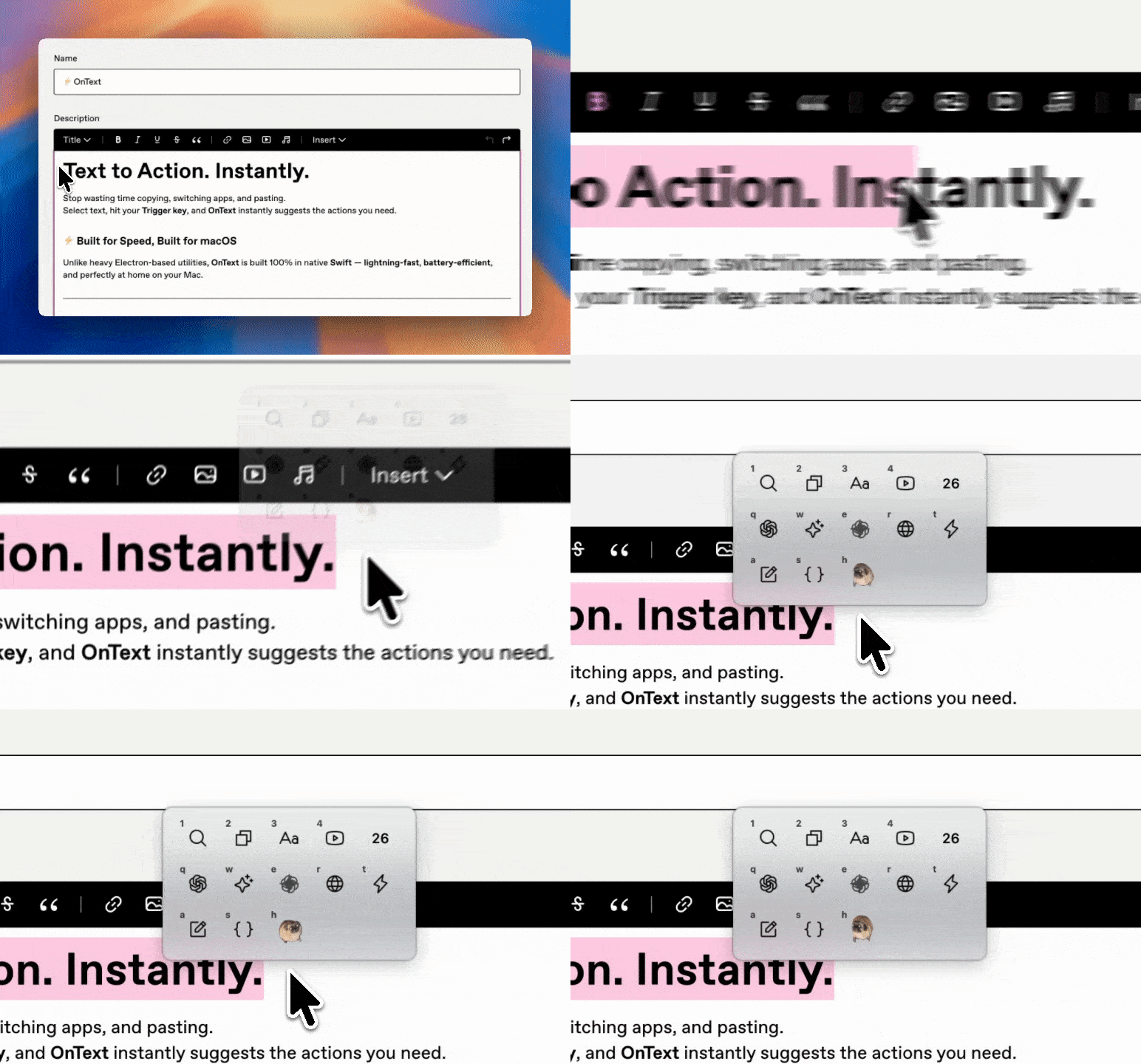
OnText is a native Mac app built for fast, seamless text actions. Select text, press your shortcut, and copy, search, translate, or automate. Keep your flow from selection to action.
macOS 13.0+Native Swift appFree to start
From the community
Real feedback from OnText users.
“Awesome tool and the dev is very responsive and helpful.”Verified buyer · Gumroad
How it works
From selection to action.
Keep your flow.
Select text
Highlight the text you want to work with in a supported Mac app.
Press your shortcut
Press F2, or choose your own shortcut.
Choose an action
Click an action, or press its assigned key to keep moving.
Built for the work you repeat
Start simple. Add power when you need it.
01Everyday actions
Small tasks. A quicker way through them.
Copy a quote, search a term, or translate a passage from the text you already have selected.
- Copy
- Search
- Translate
- Character Count
- Large Type
02Inline AI
Rewrite, summarize, and keep moving.
Send your selection to Inline AI, then replace the original or copy the result. Keep the editing workflow close to your text.
- ChatGPT
- Gemini
- Claude
- Ollama
- Prompt Presets
03Custom workflows
Set it up once. Run it from your selection.
Give a script, URL, or macOS Shortcut its own action and key. Reuse it whenever the same task comes up.
- URL Actions
- Shell Scripts
- AppleScript
- Shortcuts
- Regex Rules
Make it yours
Small actions. Just the way you like them.
01 / YOUR KEYMAP
See every shortcut.
Actions, Apple Shortcuts, and folders. One key at a time.
Keymap
Trigger Shortcut F2 Trigger Action Apple Shortcut Folder
`1234567890-=
QWERTYUIOP[]\
ASDFGHJKL;'
ZXCVBNM,./
SRoot › Search
CRoot › Copy
LRoot › Large Type
YRoot › YouTube
IRoot › Inline AI
NRoot › Create Note
ARoot › Add to Calendar
HRoot › ChatGPT
GRoot › Gemini
TRoot › Translate
DRoot › DeepL
ORoot › Add to Notes
FRoot › Text Transform
URoot › Open URL
ERoot › Email
RRoot › Copy Color
ACTION SHORTCUTSearch
Example key assignments. Customize your shortcuts in OnText.
02 / YOUR AI
Your AI. Your way.
Cloud models, local models, or ChatGPT OAuth.
 OpenAIAPI
 ClaudeAPI
 GeminiAPI
 OllamaLocalChatGPTOAuth
Connect in OnText settings. Provider model access and limits apply.
API usage may incur separate provider charges.
Stay in control
Fast when you want it. Explicit when it matters.
A shortcut, then an action key
Open OnText with your shortcut, then press the key assigned to an action. Build a familiar rhythm for the text tasks you repeat.
Learn the shortcutsLocal by default
Core actions stay on your Mac. Online actions can send selected text to the service you choose.
Read the privacy policyYour AI provider
Choose a supported cloud provider or use Ollama locally. Your API keys are stored on your Mac.
Review AI settingsPricing
Start free. Upgrade when OnText becomes part of your workflow.
Free
Try the core workflow
$0
- Up to 3 custom actions
- Standard Copy and Search actions
- Default theme and settings
Pro Full workflow
Build your own actions
$6.99 lifetime
- Activate on 1 Mac
- Unlimited custom actions
- Inline AI with supported providers
- Shell, AppleScript, and Shortcuts actions
- Keyboard shortcuts, regex rules, and custom icons
Pro 3 Macs
One license. Three Macs.
$13.99 lifetime
- Activate on up to 3 Macs
- All OnText Pro features
- Unlimited custom actions
- Inline AI and custom workflows
Choose the 1 Mac or 3 Macs license option on Gumroad.
Why does OnText need Accessibility permission?
It uses Accessibility permission to detect selected text, monitor the global hotkey, and perform actions such as replacing or pasting text.
Can I change the F2 shortcut?
Yes. Set a different trigger shortcut in Preferences → General → Behavior.
Does selected text always leave my Mac?
No. Core actions run locally. Actions that contact a website, external service, or cloud AI provider may send selected text or request data there. Ollama can stay local when configured on your Mac.
Which macOS version do I need?
OnText requires macOS 13.0 Ventura or later.
Ready when your text is